
This is the long, slow version of a job that takes ten minutes once you have done it once. It assumes picframe3, which has Syncthing built in — there is no
apt, nosystemdand no config file editing anywhere below. If you are running an older Pi3D frame, or any Pi without picframe3, install Syncthing by hand as described in my 2020 Syncthing article and then come back here from Step 2, because everything on the computer's side is identical.
Syncthing is the best way I know to get photographs onto a Raspberry Pi picture frame. It is free, it is open source, it keeps no copy of anything on anybody else's server, and once it runs you simply stop thinking about it: you drop a holiday folder onto your laptop and by the time you have walked into the living room the frame is showing it. It is now built into picframe3, which takes the whole Raspberry Pi half of this job down to one question during the setup.
And it has one genuinely confusing moment at the start.
The one idea that makes it click
Almost everybody who gets stuck is stuck on the same misconception — that Syncthing pairs paths. It does not.
Syncthing pairs a folder ID. The path is just where that folder happens to live on each machine, and it can be completely different on every one of them.
That is the whole model. On the frame, the folder with the ID picframe3-pictures lives at ~/Pictures. On the Mac, the folder with the ID picframe3-pictures lives at /Users/yourname/Pictures/digitalframe. On the study PC it lives at C:\Users\yourname\Pictures\digitalframe. Three different paths, three different machines, one folder. Whatever is inside one is inside all of them — the same subfolders, the same files, the same deletions.
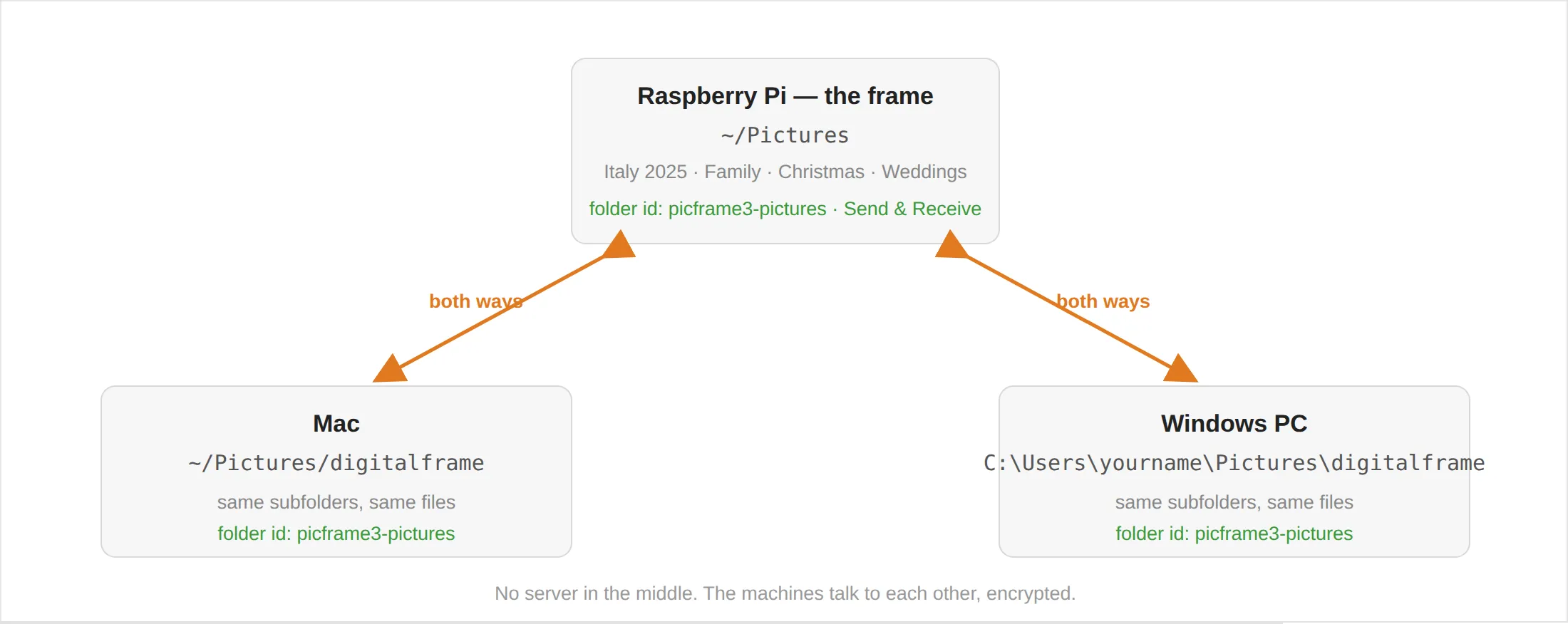
Once you have that picture in your head, everything else in Syncthing's interface reads as what it is.
What we are going to build
This is the example I will walk through, and I have deliberately picked the one most people actually want.
On the Raspberry Pi, the frame's picture folder is ~/Pictures, and it has whatever subfolders you keep your photographs in — Italy 2025, Family, Christmas, Weddings. This is the folder picframe3 already shows on the wall.
On your Mac or PC, that same folder appears as a single new folder inside your own Pictures folder, called digitalframe. Open it and you see Italy 2025, Family, Christmas, Weddings — the frame's contents, on your desk.
Drag a folder of photographs into digitalframe and a minute later they are on the wall. Delete something in digitalframe and it comes off the wall. Remove a picture on the frame — from the frame's web interface, from Home Assistant, from the keyboard — and it disappears from digitalframe too.
That last sentence is the one to read twice.
Two-way sync means deletions travel in both directions. That is a feature, and it is also the thing that bites people. There are two safety nets under it, and I will set both of them up later in this article: Syncthing's own trash can, and picframe3's Removed tab. Neither is on by accident, so do not skip that section.
If you would rather the frame never sent anything back at all — photographs arrive, nothing ever leaves — that is a one-line setting, and I cover it at the end under Receive only.
Before you start
Five things, and four of them are probably already true.
- The frame is running and you can reach it.
ssh pi@frame.localworks, or you know its IP address. - Both machines are on the same network for the first pairing. They do not have to stay there — Syncthing works fine over the internet afterwards — but the first handshake is far less fussy at home.
- You know where your pictures folder is on the frame. With picframe3 it is whatever you set as the picture folder,
~/Picturesunless you changed it. - You have twenty minutes. The first sync of a big library takes longer than that, but it runs by itself.
- You have a backup of the photographs somewhere that is not the frame and not the synced folder. I mean this. Syncthing is a synchroniser, not a backup: it is very good at making two machines identical, which includes making them identically empty. Your photographs should exist somewhere Syncthing cannot reach.
Step 1 — Syncthing on the frame
This is new, and it is the single biggest change since I first wrote about Syncthing here: Syncthing is now part of picframe3 rather than something you bolt on afterwards. The frame installs it, switches it on and off, points it at your picture folder, opens its page on your network, pairs it with another machine and decides which way deletions travel — and you never touch apt, systemd or config.xml on the Pi to do any of it.
That matters more than it sounds. The two genuinely fiddly parts of a classic Syncthing install on a headless Pi — getting the service to run as the right user, and prising the web interface away from 127.0.0.1 so you can actually open it — are simply gone.
There are two ways in: during the setup, or afterwards from the frame's settings page.
During the setup. It is question 3, and this is the whole exchange, start to finish. I am reproducing it in full because the initial run is the part people tell me they find confusing, and seeing it written out once removes most of that.
$ picframe3 setup copying

Getting photographs onto the frame
Two ways, and you can have both. Syncthing keeps a folder on your phone, your
Mac or a NAS in step with the frame by itself — a photograph taken this
afternoon is on the wall this afternoon, from anywhere. A Windows/macOS file
share makes the frame appear in Finder or Explorer, so you can drag
photographs onto it while you are on the same network.

     1  Syncthing — photographs arrive by themselves
     2  A file share — drag photographs onto the frame
     3  Both
     4  Neither; I will copy the files on myself

   Which [1]: 1

Syncthing pairs with your phone, Mac, PC or NAS once and then keeps a folder in
step in both directions. Nothing goes through anybody else's server — the
devices talk to each other.
   Should photographs travel both ways? [Y/n]: y

Both ways means a photograph you Remove on the frame is also removed from the
phone that sent it. Syncthing keeps its own copy of anything deleted for 30
days, and the frame's Removed tab keeps its own — so it is recoverable, twice
over. Pick "no" above if you would rather the frame never sent anything back.

   Installing Syncthing — a minute or two…
   ✓ Syncthing is keeping /home/pi/Pictures in step
       Its own page   http://frame.local:8384/
       This frame is  P4XK7ZQ-M2VHTRB-6WSNDYF-A3LJCUE-Q7BMK5X-TZ4RVGP-J9HWNS2-DFXQ6AA
Three things in there are worth stopping on.
"Which [1]" — you can have both. Option 3 gives you Syncthing and a Finder/Explorer file share. They do not conflict; they are two doors into the same folder. If you are unsure, take 3.
"Should photographs travel both ways?" This is the Send & Receive versus Receive only decision, asked in plain language and asked once. Yes is the default and what this article assumes. No means the frame accepts everything and never sends a change back, so Remove on the frame stays on the frame. You can change your mind later, so do not agonise.
The last two lines are the ones to copy. This frame is … is the frame's device ID — that is the string you will need in Step 3. Select it now and put it somewhere; you can always get it back from the settings page, but you will want it in about five minutes.
If you already ran the setup and said no, nothing is lost. picframe3 setup copying asks only these questions again.
Afterwards, from the settings page. Open the frame's web interface (http://frame.local:9000), go to Settings, and find the card Getting photographs onto the frame. It has a button that says either Install and switch on or Switch on, and it does the whole job, including the parts that need root — the frame never runs a package manager itself, it asks two fixed little services to do exactly that one thing and nothing else.
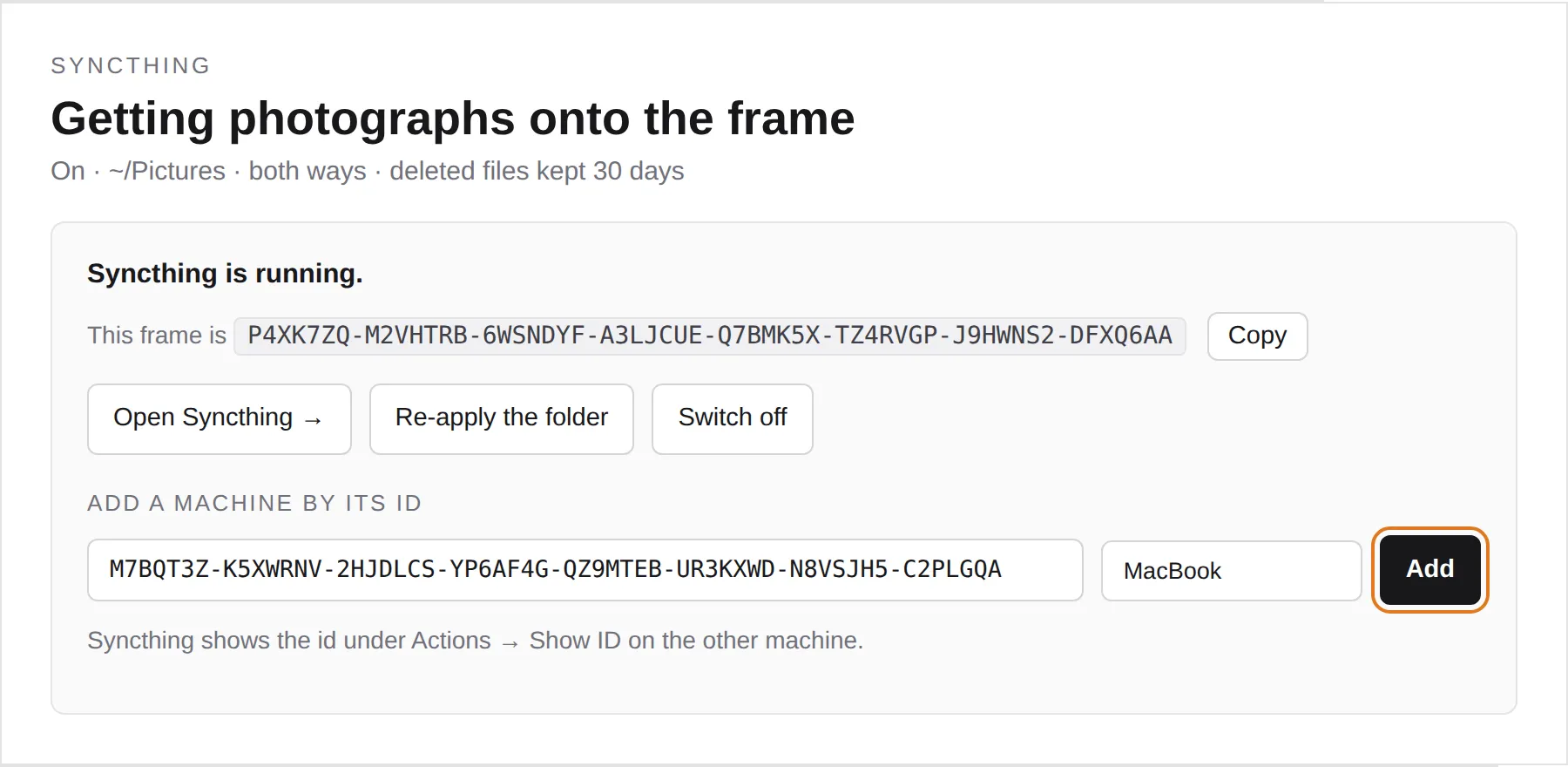
This card is also where you come back to later, so it is worth knowing what is on it: the frame's own device ID with a Copy button, a link straight through to Syncthing's own page, Re-apply the folder for when you have changed a setting, Switch off, and the Add a machine by its id box that Step 3 uses.
Underneath it are the settings themselves. Two are worth a look now:
- Syncthing's own page on the network — on by default, and you want it on. Out of the box Syncthing only listens on the Pi itself, which on a frame with no keyboard and no browser means a web interface nobody can open. With this on, you can reach it at
http://frame.local:8384. - Keep deleted files for (days) — leave it at 30. That is safety net number one, and it is explained further down.
A word about passwords. Syncthing's page on the frame has no password in front of it, exactly like picframe3's own page. On a home network that is a considered decision, not an oversight. If your network is shared — a flat share, a holiday let, an office — set a user name and a password in Syncthing under Actions → Settings → GUI before you hand the address around.
Step 2 — Syncthing on your computer
macOS
Download syncthing-macos from the Syncthing download page — it is listed under Integrations, and it is the friendly app bundle rather than a bare command-line binary. Drag it to Applications and launch it. There is no window and no dock icon; you get a small icon in the menu bar, and Open in its menu takes you to the web interface at http://127.0.0.1:8384.
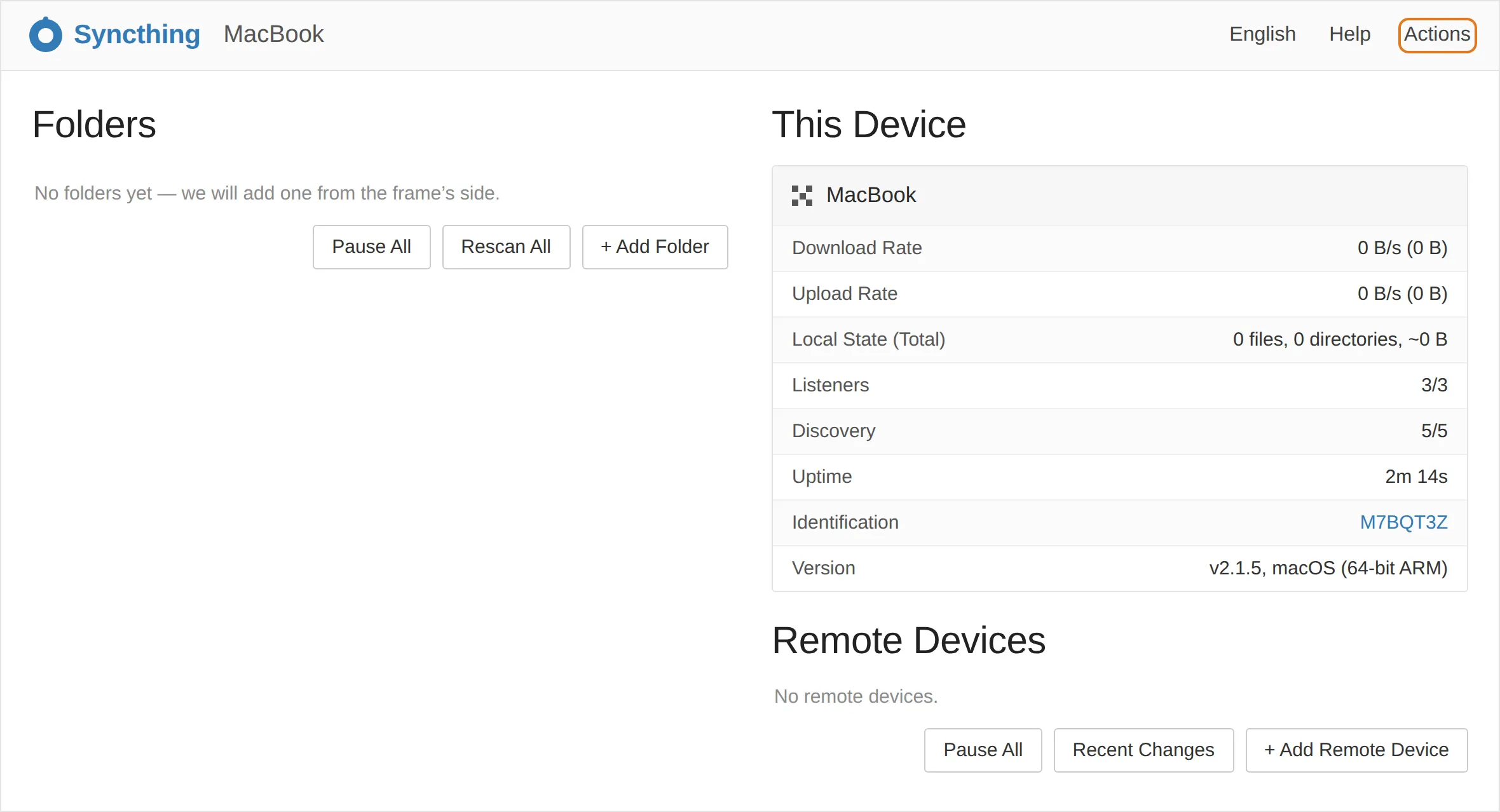
Since Syncthing 2.0 there is no sample folder any more, so an empty Folders column is exactly right.
Do this now, before anything else: give Syncthing Full Disk Access. macOS blocks applications from reading
~/Pictures,~/Documentsand~/Desktopunless you say otherwise, and Syncthing's error when it hits that wall is a bare permission denied that looks like a broken installation. Open System Settings → Privacy & Security → Full Disk Access, switch Syncthing on, and quit and relaunch the app. Ten seconds now, or an hour of confusion later.
Windows
Two good options, both on the same download page under Integrations:
- Syncthing Windows Setup — a proper installer. By default it installs for your user and starts Syncthing at logon; with the all users option it runs as a Windows service, so the frame keeps getting photographs even when nobody is logged in. It creates the firewall rules and a Start menu shortcut called Syncthing Configuration Page, which is how you open the web interface.
- SyncTrayzor — a tray application with the web interface built into its own window. This is the one my 2020 article pointed at; it is now maintained as a fork, and it still works well.
Check where your Pictures folder actually is. If you have ever switched on OneDrive's folder backup, Windows quietly moved
PicturesintoOneDrive\Pictures. Syncing a Syncthing folder into a OneDrive folder means two synchronisers fighting over the same files, and it goes badly. Right-click Pictures → Properties → Location and see what it says. If it is inside OneDrive, putdigitalframesomewhere else —C:\Users\yourname\digitalframeis fine, the path does not have to be pretty.
Linux
Syncthing is in most distributions' own repositories, or you can add the project's apt repository for a current build. Start it as your own user, not as root, and the web interface is at http://127.0.0.1:8384.
Step 3 — Introduce the two machines to each other
Every machine running Syncthing has a device ID: eight groups of seven letters and digits. It is not a secret and not a password — it identifies a machine, it does not let anybody into it. You can mail it to somebody without a second thought.
On your computer, open Syncthing's page and go to Actions → Show ID.
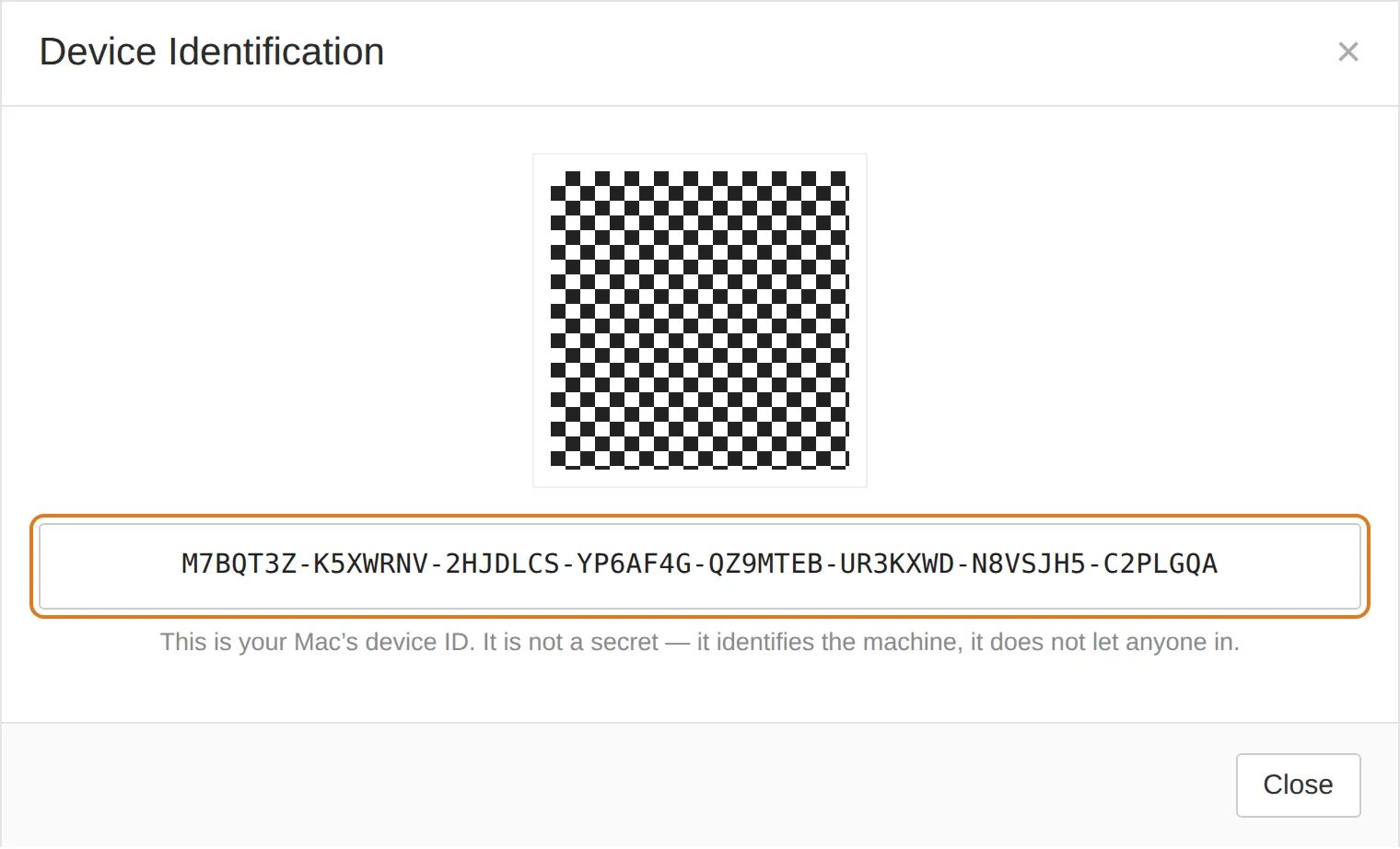
Copy that whole string, then go to the frame's Settings page, to the same Getting photographs onto the frame card as before. Paste the ID into the Add a machine by its id box, give it a name you will recognise — MacBook, Study PC — and press Add.
That one action does three jobs: it adds your computer as a known device, it creates the shared folder if it does not exist yet, and it shares that folder with your computer. There is nothing else to do on the frame — you never have to open Syncthing's own page to pair a machine.
Within a minute or so your computer will pop up this:
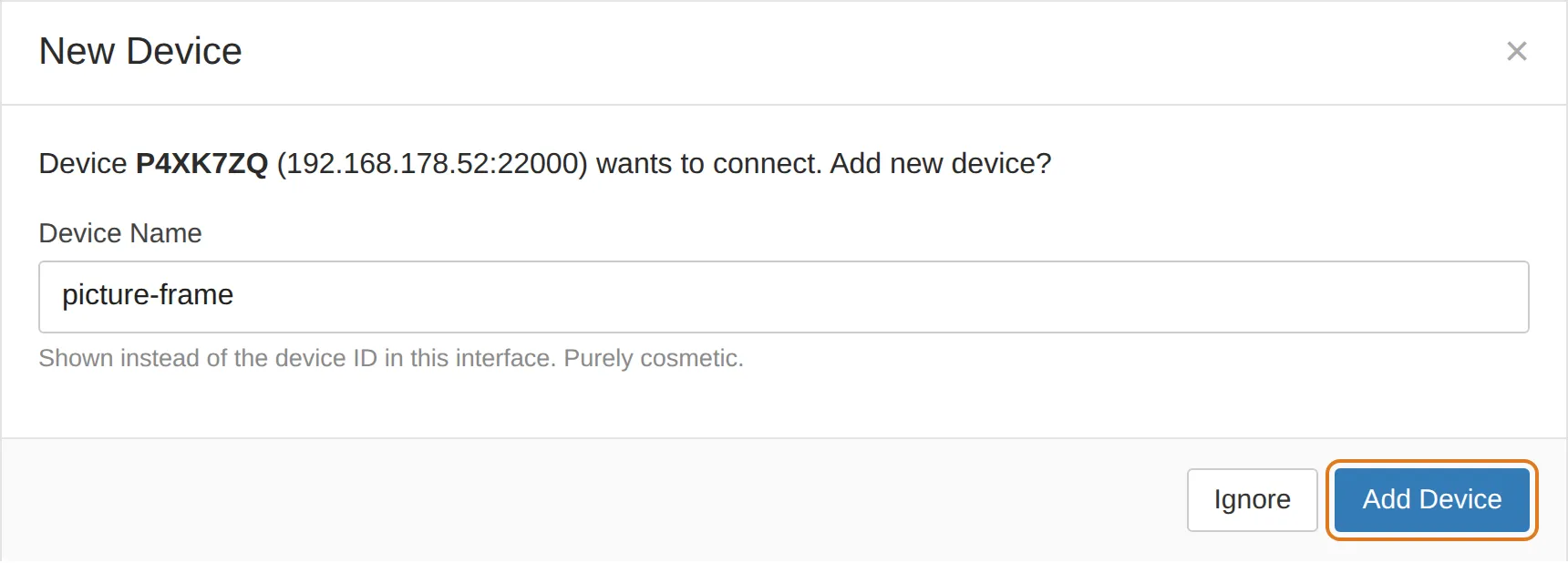
Click Add Device. If nothing appears after two or three minutes, reload the page in your browser — the prompt only arrives on a page that is actually open. This is the single most common "it's broken" moment and it is almost always a stale browser tab.
Step 4 — Accept the folder, and choose where it lands
Right after the device is added, a second prompt arrives. This is the important one — this is where you decide where the frame's pictures appear on your machine.
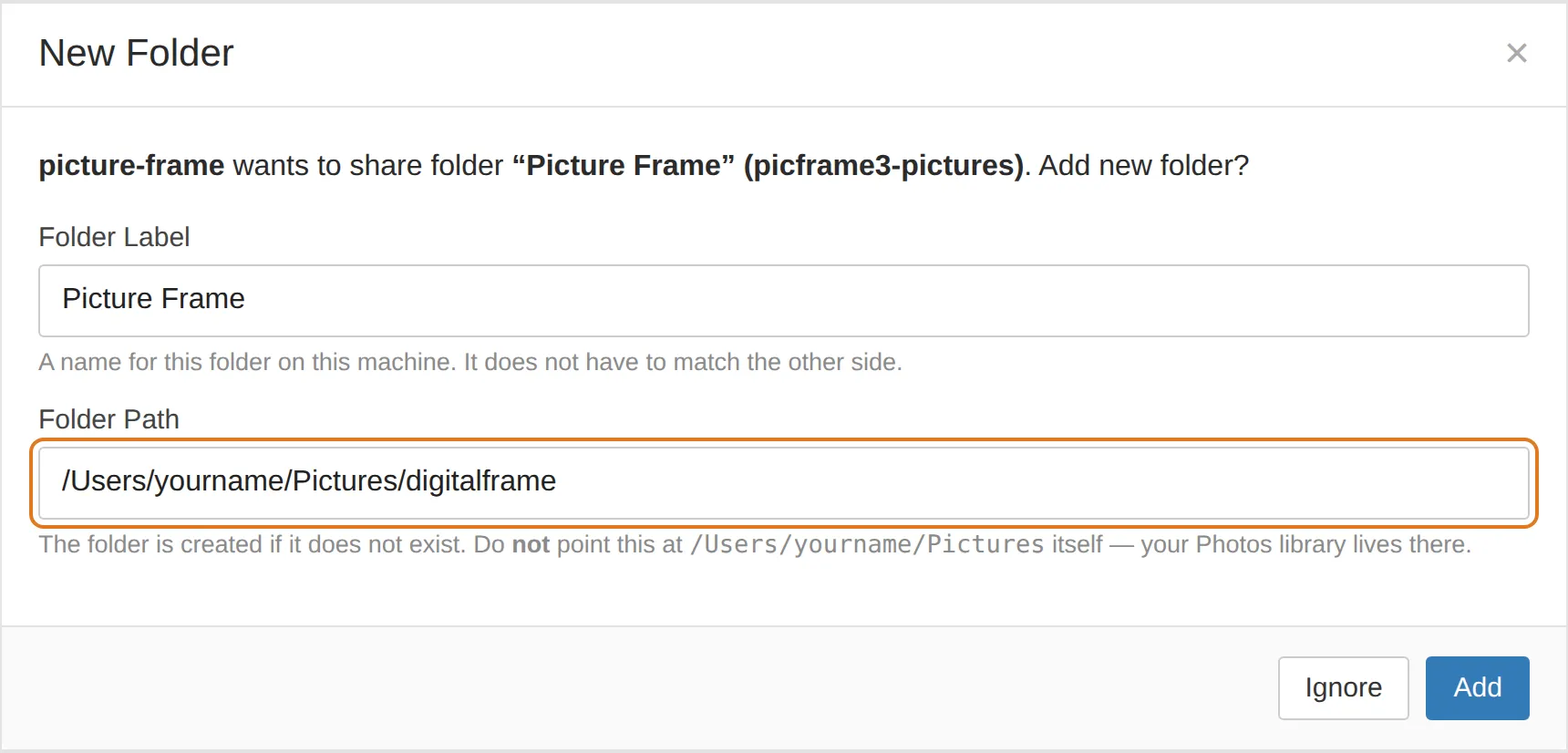
Three fields, and only one of them matters:
- Folder Label — cosmetic.
Picture Frameis fine. - Folder ID — already filled in —
picframe3-picturesif you used picframe3. Leave it alone. This is the thing the two machines agree on; change it and the pairing is broken. - Folder Path — this is your decision. Type
/Users/yourname/Pictures/digitalframe(Mac) orC:\Users\yourname\Pictures\digitalframe(Windows), with your own user name in place ofyourname. The folder does not have to exist; Syncthing creates it.
Click Add, and that is the setup finished.
Do not point Folder Path at
~/Picturesitself. On a Mac, your entire Photos library lives in there asPhotos Library.photoslibrary— a package containing tens of thousands of files that Syncthing would cheerfully copy onto a Raspberry Pi with a 32 GB card. The whole reason the example uses adigitalframesubfolder is to keep a clear, deliberate wall between "my photo library" and "what is on the wall".One more macOS note that costs people an evening: Folder Path always uses the English folder names. It is
/Users/yourname/Pictures, never/Users/yourname/Bilder, even if Finder shows you Bilder.
Step 5 — Watch the first sync
Both columns should now show something. Give it a few minutes; a large library takes a while, and the very first scan of the frame's folder has to hash every file before a single byte moves.
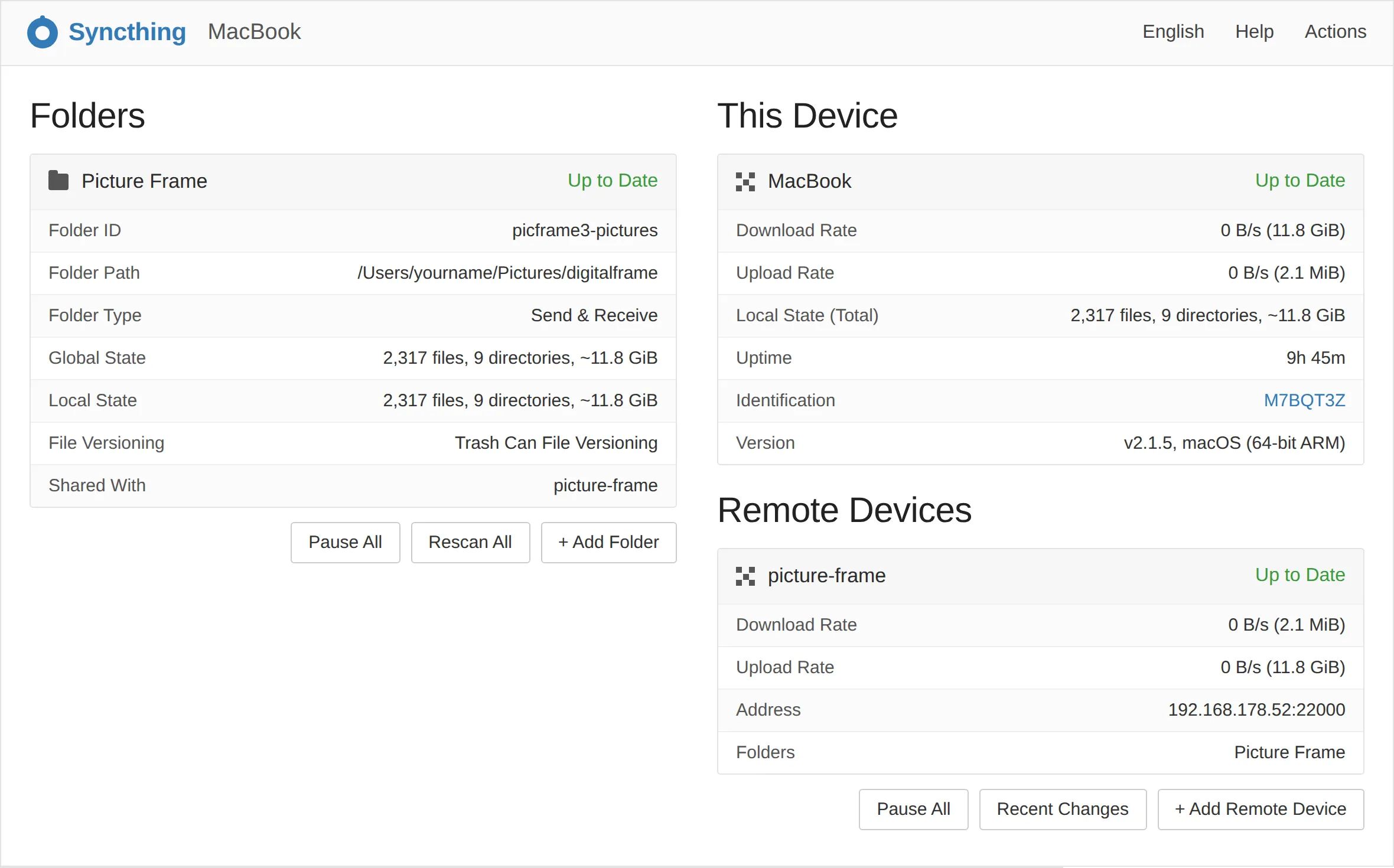
Up to Date in green on both the folder and the remote device is what you are waiting for. If you want to watch the details, the frame's own Syncthing page at http://frame.local:8384 shows the same thing from the other side.
Step 6 — Test it properly, now, while you are paying attention
Do not skip this. Three tests, two minutes, and you will know exactly what this thing does before you trust it with anything.
Test 1 — a photograph arrives. Drop one picture into digitalframe on your computer. Within a minute it is on the frame. If picframe3 is running, it appears in the library without you doing anything; the frame watches the folder itself.
Test 2 — a folder arrives. Drag a whole folder of twenty photographs in. Same thing, a bit slower. Note that it turns up on the frame as a subfolder of ~/Pictures with the same name — which is why the folder filter in picframe3's web interface is worth knowing about.
Test 3 — a deletion travels. Delete one of those twenty on your computer. Watch it disappear from the frame. Then remove a picture on the frame — using picframe3's Remove button — and watch it disappear from digitalframe on your computer.
That third test is the one that surprises people. It is correct behaviour, and it is why the next section exists.
The two safety nets
Because deletions travel, you want somewhere for deleted things to land. There are two, they work at different ends, and you want both.
Net one: Syncthing's trash can
In Syncthing, open the folder, go to the File Versioning tab, and choose Trash Can File Versioning with a clean-out of 30 days.
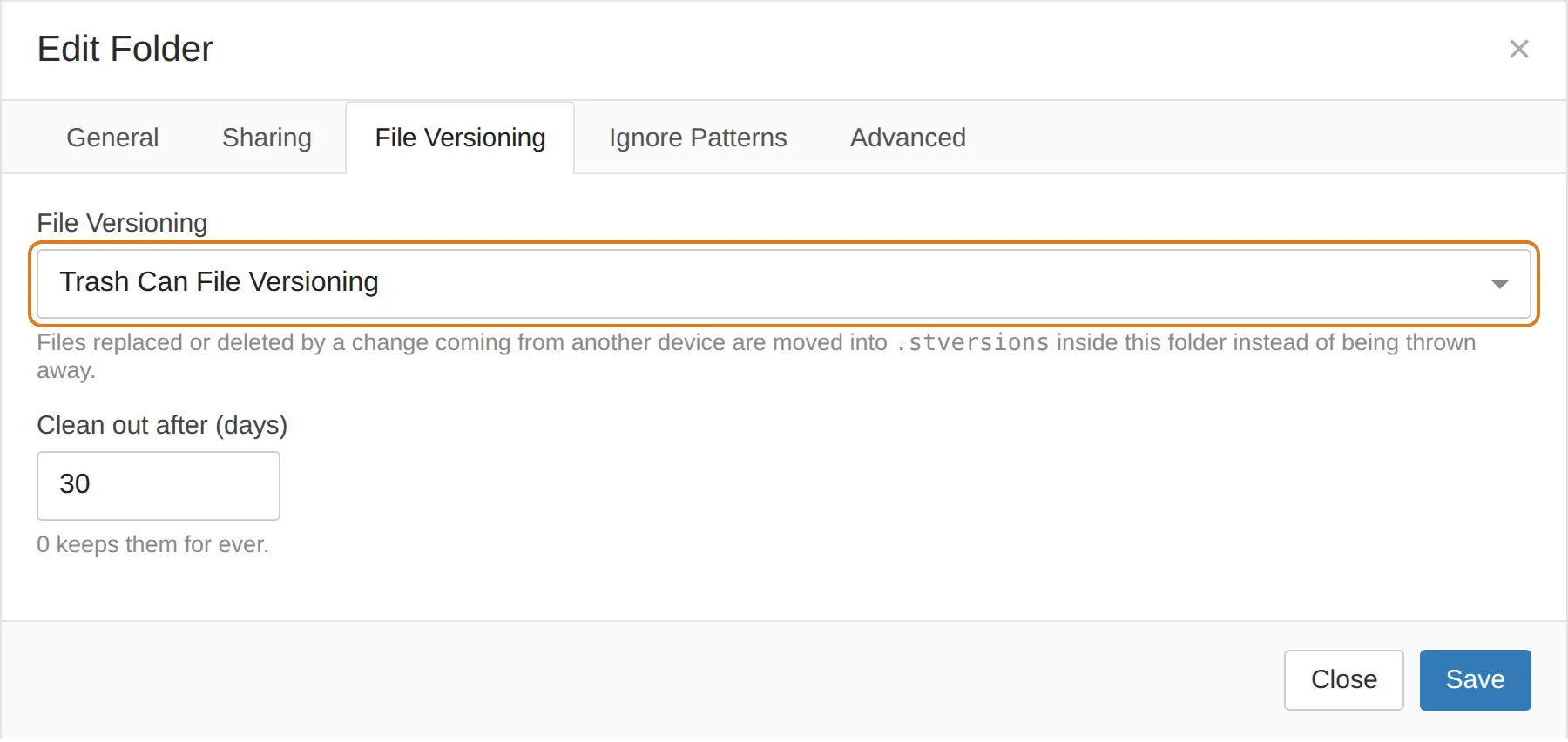
A file that gets deleted or overwritten by a change arriving from the other machine is moved into a hidden .stversions folder inside the synced folder instead of being thrown away, and swept up 30 days later.
There is one subtlety worth understanding, because it decides where you should switch this on:
Versioning only catches changes that arrive from somewhere else. It cannot catch what you do locally. So if you delete a photograph on your Mac, the frame archives it — the deletion arrived there from outside. And if the frame removes a photograph, your Mac archives it. Which means the trash can is only useful if it is turned on at both ends. picframe3 turns it on for you on the frame's side, at 30 days. Turn it on on your computer too; it takes fifteen seconds and it is the difference between a recoverable mistake and a permanent one.
.stversions is never synced anywhere. It stays on the machine it is on.
Net two: picframe3's Removed tab
This one is specific to picframe3 and works at a different level. When you Remove a picture on the frame, the file is moved out of the picture folder, the removal is written to a journal — when, from where, which file — and the Removed tab in the frame's web interface can put it back. It also remembers what you removed by content, so a picture you have taken off the wall stays off the wall even if the same file arrives again later from a sync or a backup. The tab tells you when that has happened and lets you allow it back.
Between the two of them, the honest summary is: nothing you do through the frame is irreversible for 30 days, provided you set the trash can up at both ends.
The third option: never send anything back
If all of this makes you uneasy, there is a simpler answer. Set the folder to Receive only on the frame.
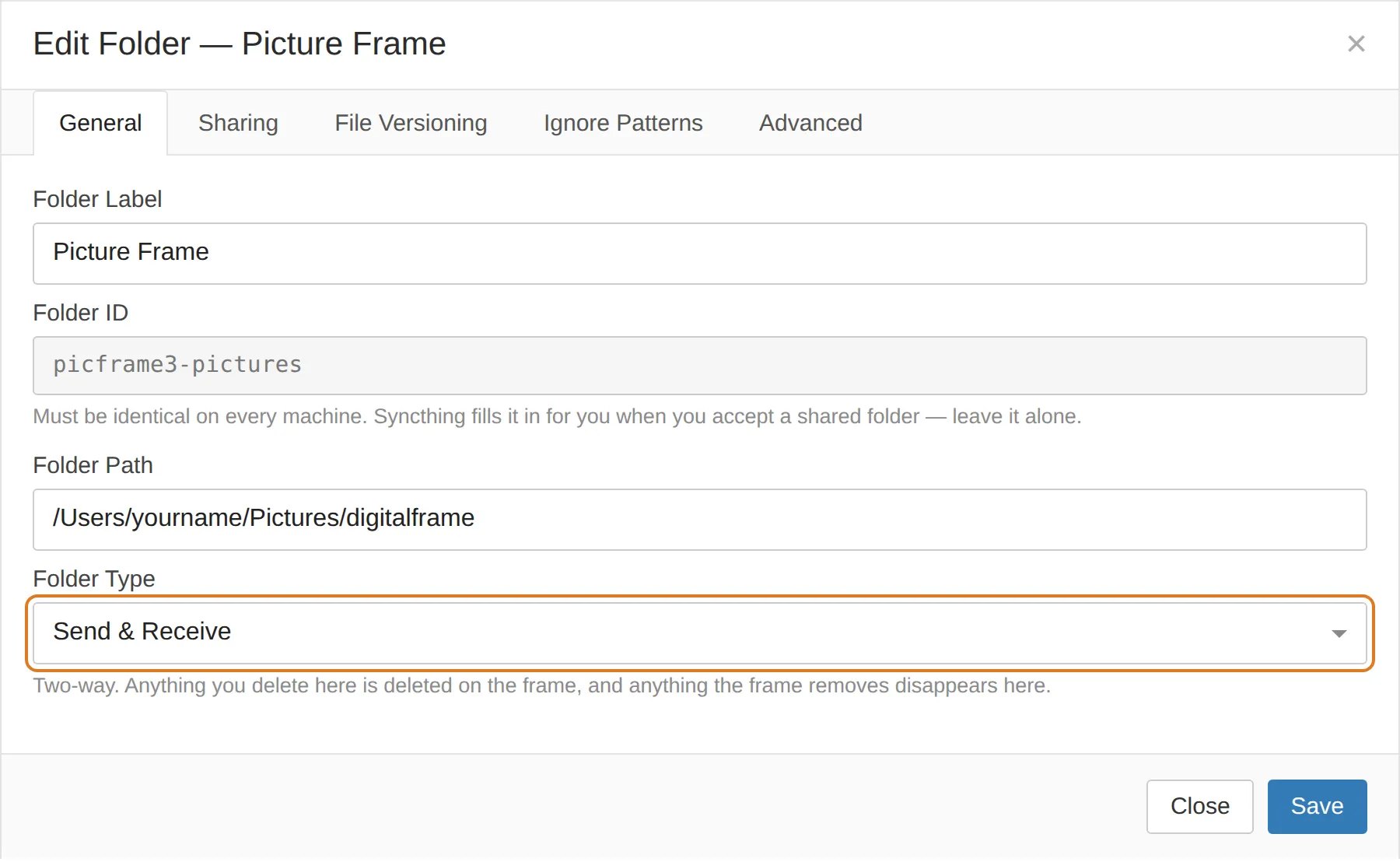
In picframe3 the setting is called Which way photographs travel, and Receive only means exactly what it says: the frame takes everything you send it and never sends a change of its own. Remove a picture on the frame and it comes off the wall but stays on your Mac. Your computer becomes the single source of truth, and the frame is a display.
The cost is that the frame's Remove button no longer tidies your library for you, and Syncthing will keep telling you the folder is out of sync (it is — deliberately). There is a Revert Local Changes button that puts the frame back in line with your computer whenever you want it.
I run mine two-way. But I have the trash can on at both ends, and I know that.
Two lines that save you grief later
Your computer scatters little metadata files around, and there is no reason to copy them to a Raspberry Pi. In Syncthing, open the folder, go to Ignore Patterns and paste:
(?d).DS_Store
(?d)Thumbs.db
(?d)@eaDir
(?d)desktop.ini
The (?d) prefix means "and delete these if they are the only thing stopping a folder from being removed", which is the behaviour you want. The pattern list lives in a .stignore file at the root of the folder and is not synced to the other machines, so set it on each machine that needs it.
While you are there: do not add .stversions or .stfolder to that list. Syncthing handles both itself.
The bonus round: a second computer
This is where the folder-ID model pays off, because adding a third machine is not harder than adding the second. It is the same three moves.
Say the study PC should also be able to feed the frame.
- Install Syncthing on the PC and copy its device ID from Actions → Show ID.
- Paste that ID into the frame, exactly as before — the Add a machine by its id box on picframe3's Settings card, or Add Remote Device in Syncthing's own page on the frame. Name it
Study PC. - Accept the device and then the folder on the PC, and set the Folder Path to
C:\Users\yourname\Pictures\digitalframe.
That is it. The frame's folder now looks like this:
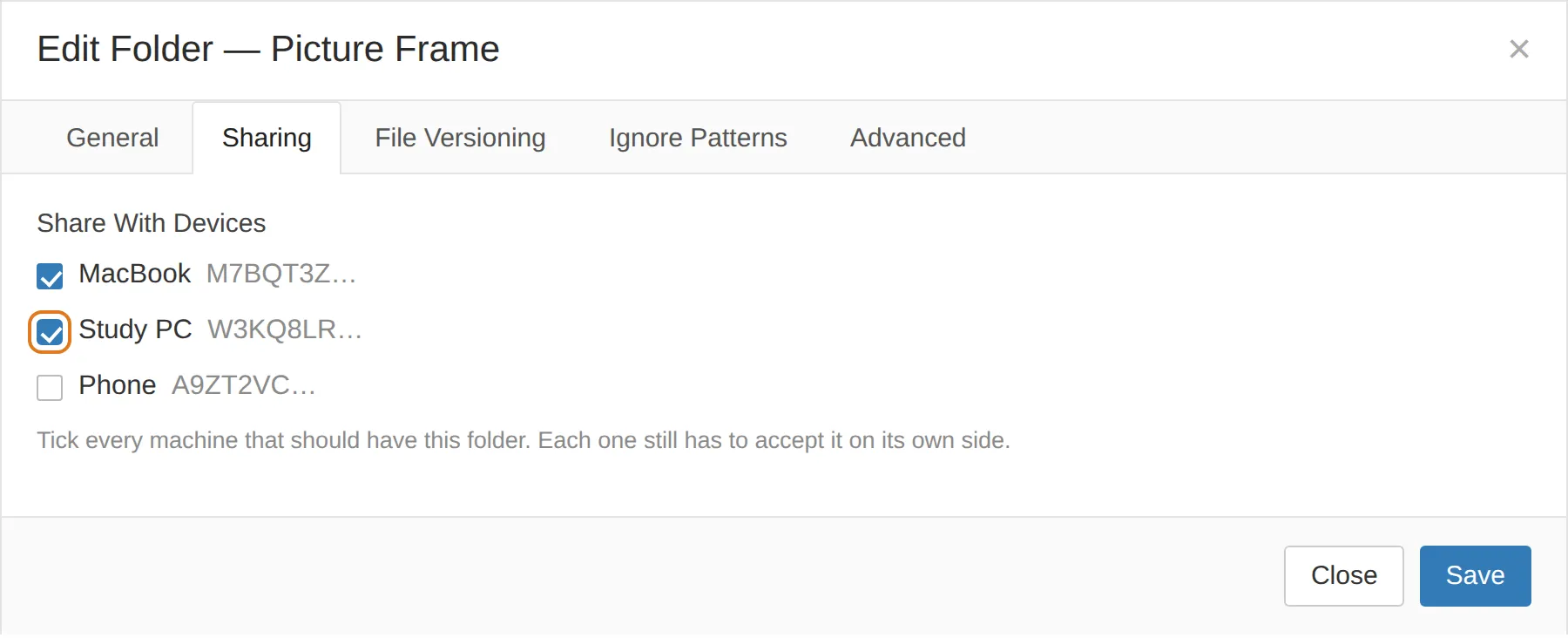
A few things worth knowing about a three-machine setup:
Everything is connected to everything. Syncthing is not a hub and spokes. Once the Mac and the PC both share a folder with the frame, they will also find each other and sync directly, which means a photograph added on the PC reaches the Mac even while the frame is switched off. If you would rather they did not, there is an Introducer setting controlling exactly that — but the default, everyone talking to everyone, is what you want in a house.
The frame can be off. Add photographs on the PC on Tuesday, switch the frame on Friday, and it catches up. Nothing is lost, nothing is queued anywhere; the machines simply compare notes when they next meet.
A laptop that leaves the house still works. Syncthing finds its peers over the local network first and over the internet second, without any router configuration, port forwarding or dynamic DNS. If it cannot make a direct connection it falls back to a volunteer relay, which is slower but encrypted end to end — the relay carries bytes it cannot read. Add Tailscale and the direct connection works from anywhere.
Phones work the same way. Syncthing on Android is the same program; on iOS there is Möbius Sync, which is a third-party app with its own limits around background running. Both pair exactly as above.
When it does not work
In rough order of how often I have seen it:
| What you see | What it usually is |
|---|---|
| The device or folder prompt never appears | Your browser tab is stale. Reload the Syncthing page on the receiving machine. |
| Devices stay Disconnected | Give it five minutes — first contact is genuinely slow. Then check both machines are actually on and not asleep. |
| Devices connect, folder stays Out of Sync | The two sides have different Folder IDs. They must be identical; the label does not matter. |
permission denied on macOS |
Full Disk Access. See Step 2. |
folder marker missing |
The folder path was deleted or is on a drive that is not mounted. Syncthing refuses to recreate it, on purpose — that check is what stops it from syncing an empty folder over your library. |
| Everything works but nothing appears on the wall | That is the frame, not Syncthing. Check the frame's Library tab, and that the folder Syncthing writes to is the picture folder the frame reads from. |
| The frame's card says Syncthing is not answering | Press Switch off and then Switch on in that card. If it still will not, picframe3 doctor says what it found. |
| You changed a setting and nothing happened | Press Re-apply the folder in the card. That is what it is for — it pushes the frame's settings back into Syncthing. |
And the one that is not a failure at all: the first sync of a large library takes hours, not minutes, and the frame's CPU will be busy while it hashes. Let it run overnight.
What Syncthing is not
It is not a backup. I said it at the top and I will say it again at the bottom, because it is the only way to get this wrong in a way you cannot undo. Syncthing's entire purpose is to make two folders identical. If a folder becomes empty — a drive fails, a sync script misfires, a cat walks across a keyboard — Syncthing will faithfully make the other one empty too. The trash can buys you 30 days. A real backup, on a disk that Syncthing has never heard of, buys you everything else.
With that said: this setup has fed my own frames for years, over a network that goes down, through router changes, house moves and two complete rebuilds of the Pi. It has never lost a photograph. It just quietly gets on with it, which is the highest praise a piece of software can earn.
As always, I would be glad to hear how it goes for you.
Was this article helpful?
Thank you for your support and motivation.