One of the design goals for my Raspberry Pi photo frame project has always been simplicity. Once the frame is mounted and running, I don’t want to have to use a keyboard, mouse, or SSH session just to interact with it. I want it to behave like an appliance.
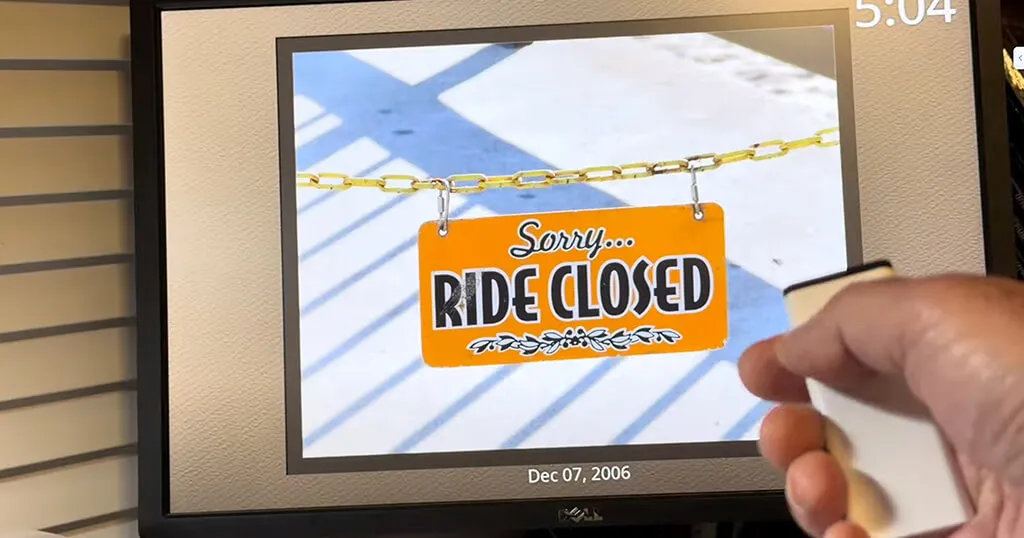
Since I began working on the project I have noticed that I’ll often want to spend more time with a photo. Unfortunately the picframe software has no out-of-the-box ability to do that. In my case it just keeps moving on to the next photo every 15 seconds or so. That led naturally to the idea of adding a remote control to allow me some basic interaction while the photo slideshow is running. With the help of ChatGPT I had it all going in just a few days.
Here’s how it looks:
In this post, I’ll walk through how I added support for an Apple infrared remote, including hardware selection, wiring, decoding button presses, mapping actions, and finally running everything reliably as a systemd service.
Editor’s note, September 2026. Ben’s build is left exactly as he wrote it, and the interesting half of it — the IR receiver,
gpio-ir,ir-keytableand the keymap — is independent of which picture frame software you run. Two things to know if you are following this on a frame built the 2026 way with picframe3. Lingering on a photo is built in now: there is a pause switch and next/previous buttons in the web interface, at the keyboard and as Home Assistant entities, so you no longer have to add a remote just to get that. And the MQTT topics and paths below are from the pi3d stack — picframe3 has novenv_picframe, and its command topic ispicframe/picframe/cmd, takingnext,previous,pauseorresumeas the payload, rather thanhomeassistant/button/…. The wiring, the keymap and the systemd pattern all still apply; only the last hop changes. — Wolfgang
Choosing an IR receiver
The first decision was hardware. There are many inexpensive IR receivers available, but not all of them integrate cleanly with Linux input handling.
My main requirements were:
- Works reliably at 3.3V (no level shifting)
- Well-supported by the Linux kernel
- Exposes events via /dev/input/event*
- Widely used and documented
I ended up choosing a VS1838B-compatible IR receiver module. These are extremely common, inexpensive, and supported by the gpio-ir kernel driver on Raspberry Pi.
This choice was important. By using a receiver that the kernel already understands, I could avoid the complexity of configuration files, protocol decoding, and timing issues. Instead, IR button presses would show up as standard Linux input events, just like a keyboard or remote control.
Ordering the hardware
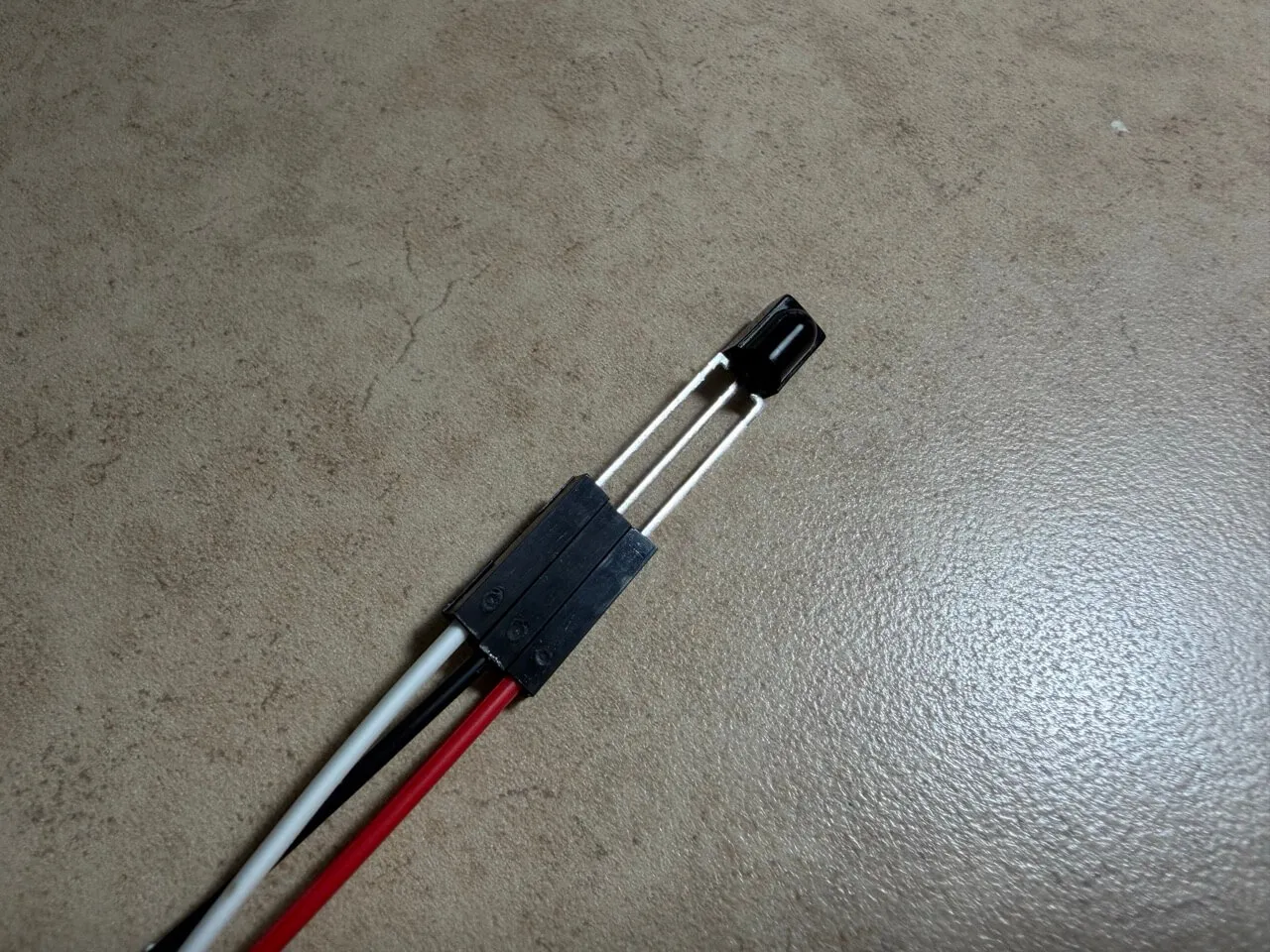
I ordered a small IR receiver module that exposes:
- VCC
- GND
- OUT
These modules typically cost only a few dollars and are readily available from Amazon, Adafruit, or AliExpress. I already had Dupont jumper wires on hand, so no additional parts were required.
In my case, I ordered a TSOP38238 from Adafruit. These are just $2 USD each. Since I’m planning to build a second photo frame, I ordered 2. With shipping and tax it was about $10. I later found out that I could have ordered these for a lot cheaper on Amazon, but I’m happy to support Adafruit, so whatever.
Choosing the remote control
For the remote itself, I chose an Apple TV 1st Gen Remote (Model A1156) IR remote.
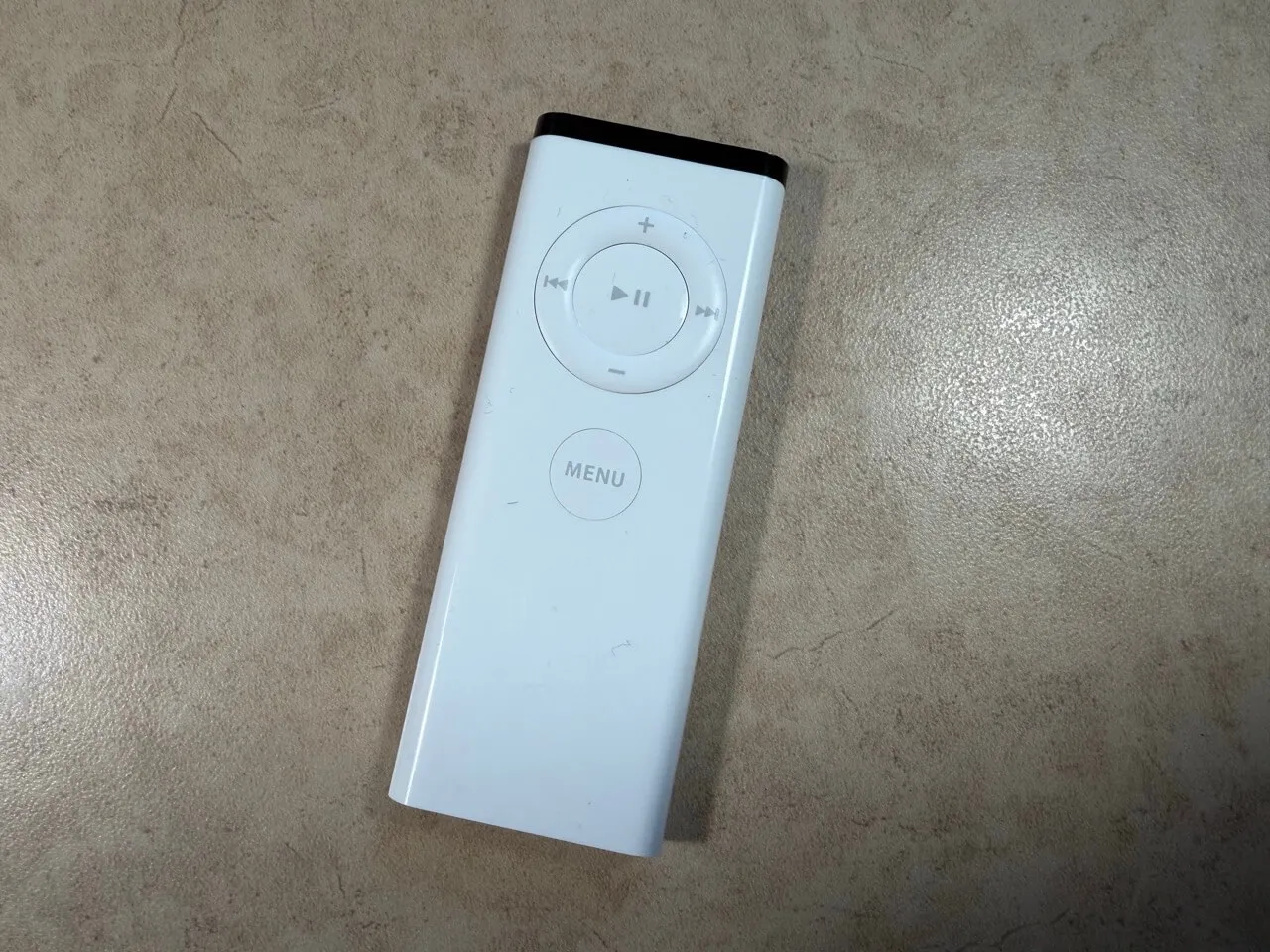
There were a few reasons for this:
- As a former product manager on the Apple TV app team, I’m quite partial to Apple products
- These are readily available and can be had for cheap on eBay
- The button layout is minimal and intuitive
- Apple remotes use a well-known IR protocol
- Linux maps Apple remote buttons to meaningful key names (e.g. KEY_MENU, KEY_PLAYPAUSE)
This last point turned out to be especially valuable. Instead of working with arbitrary scancodes, Linux already translates Apple remote signals into semantic key events.
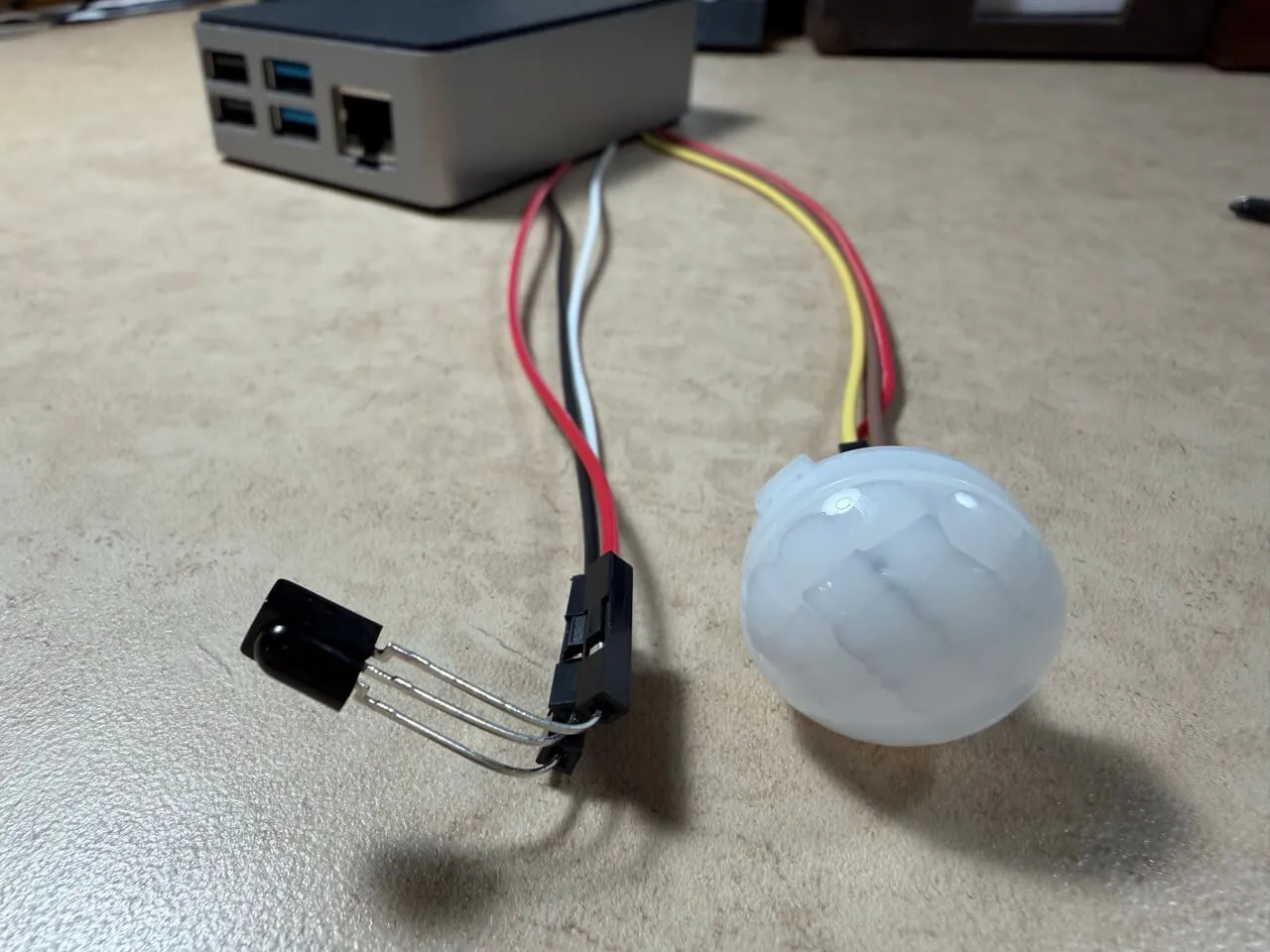
Installing the IR receiver hardware
Physically installing the receiver was straightforward.
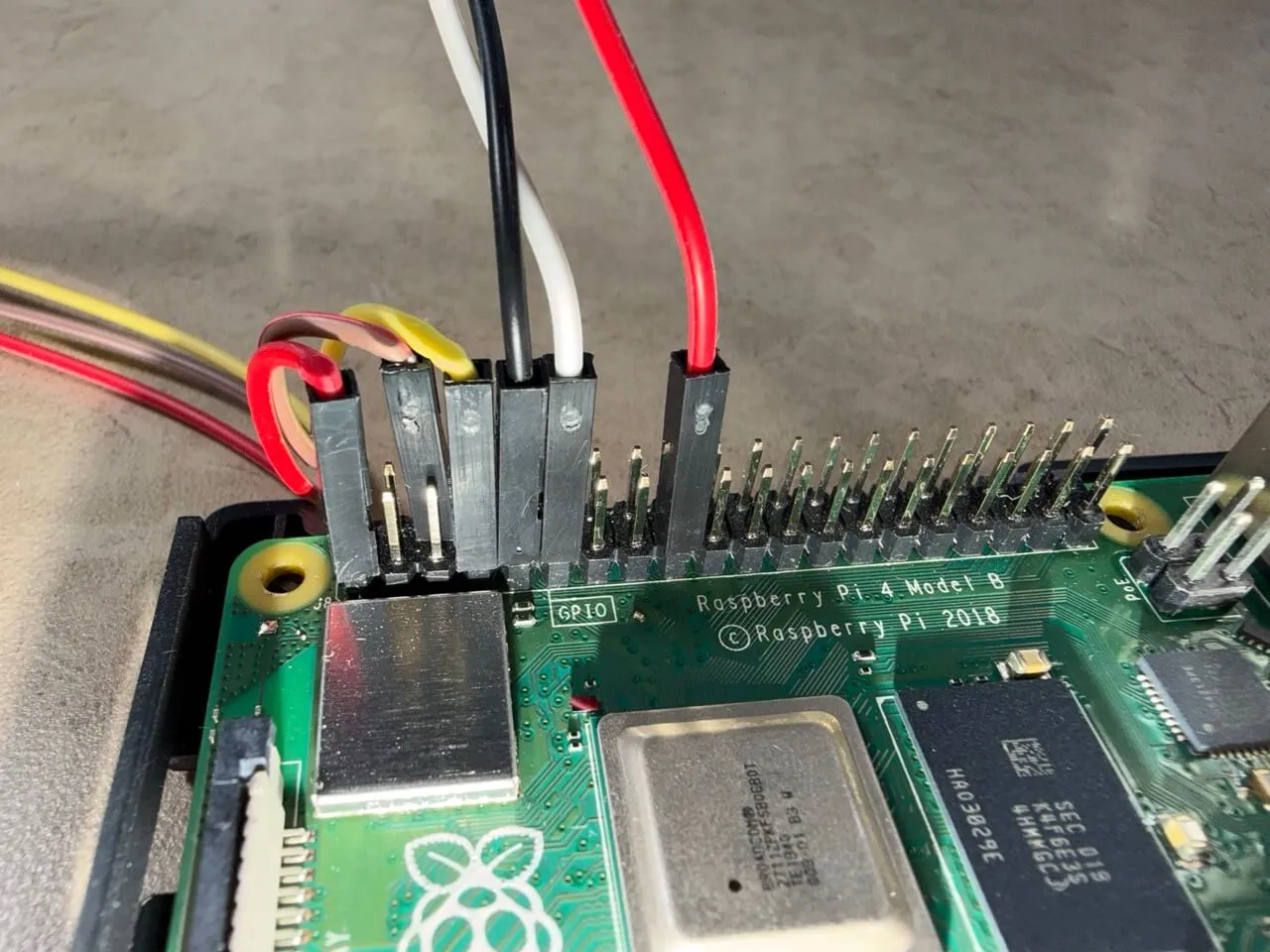
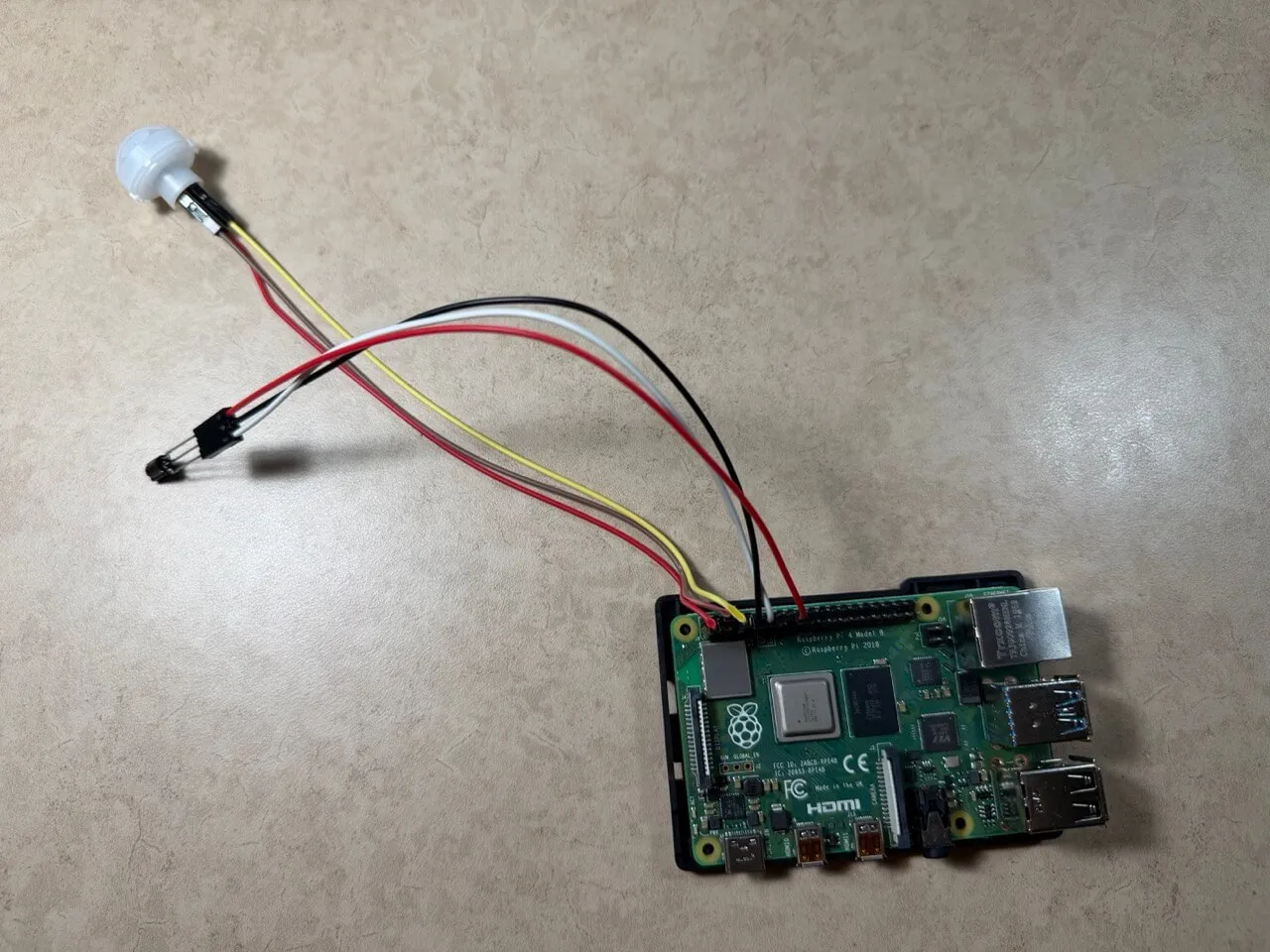
The connections were:
- VCC → Raspberry Pi 3.3V
- GND → Raspberry Pi ground
- OUT → A GPIO pin configured for IR input
I used a GPIO pin supported by the gpio-ir overlay and enabled the overlay via the Pi’s boot configuration.
At this stage, I took a few photos of the wiring for documentation. The hardware setup itself is simple, but it’s helpful to have a visual reference later.
Verifying the hardware was working
Before writing any code, I wanted to confirm that the kernel was seeing IR events correctly. For this, I used a Linux utility called ir-keytable. This is not typically installed with Raspbian, but is easy enough to install:
sudo apt update
sudo apt install -y ir-keytable
To get the IR device to show up I did have to configure linux to recognize it. In my version of Raspbian (v13 aka Trixie), that meant editing /boot/firmware/config.txt.
dtoverlay=gpio-ir,gpio_pin=17
Once I did that, the device showed up.
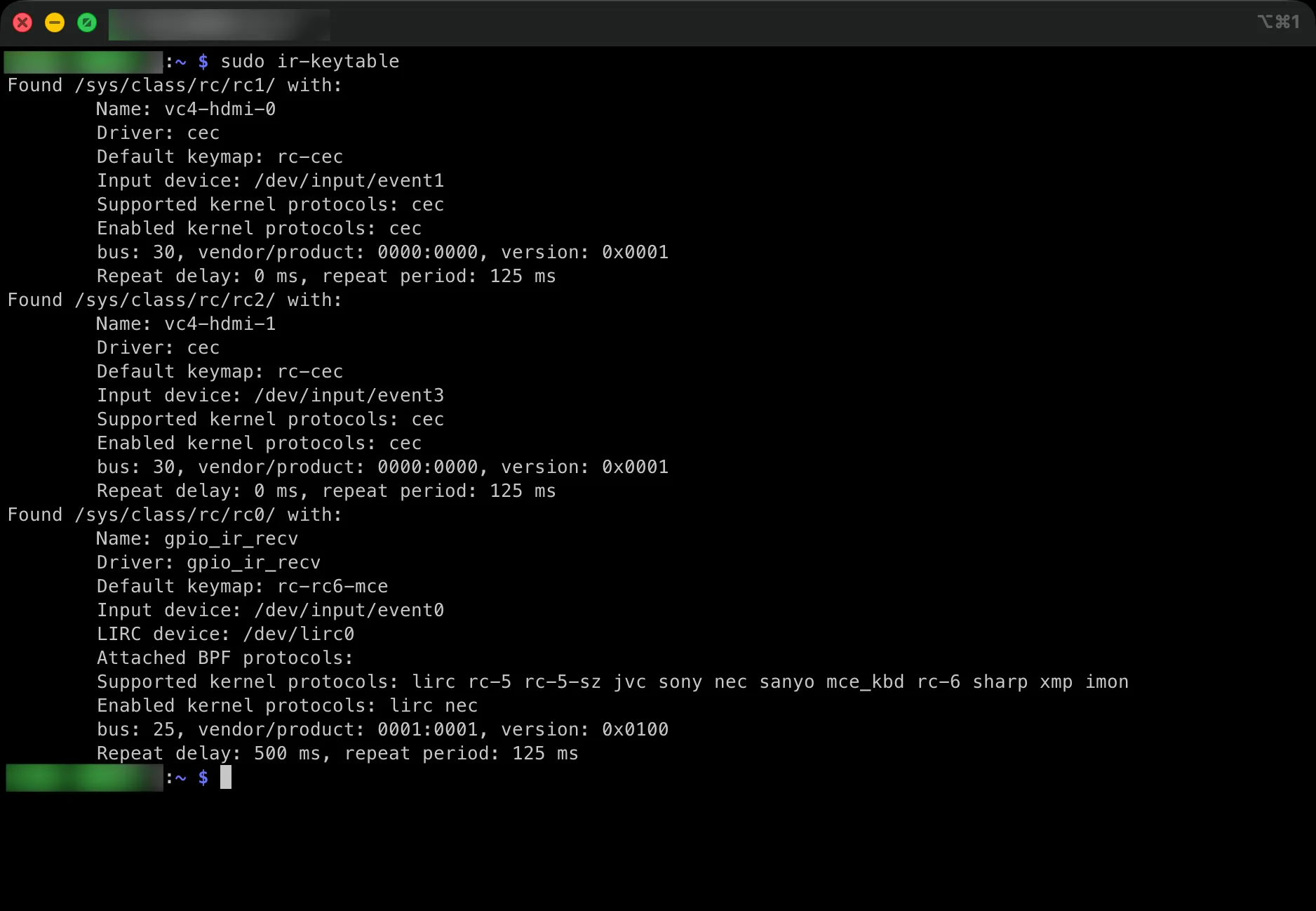
Using ir-keytable, I confirmed that pressing buttons on the Apple remote generated input events. Seeing entries like this was the first big win. Initially, ir-keytable showed just the scancodes (i.e., the EV_KEY events). These are visible in the screenshot below as the shot was taken after I had mapped the scancodes to actual keys. Read on to learn how I did that.
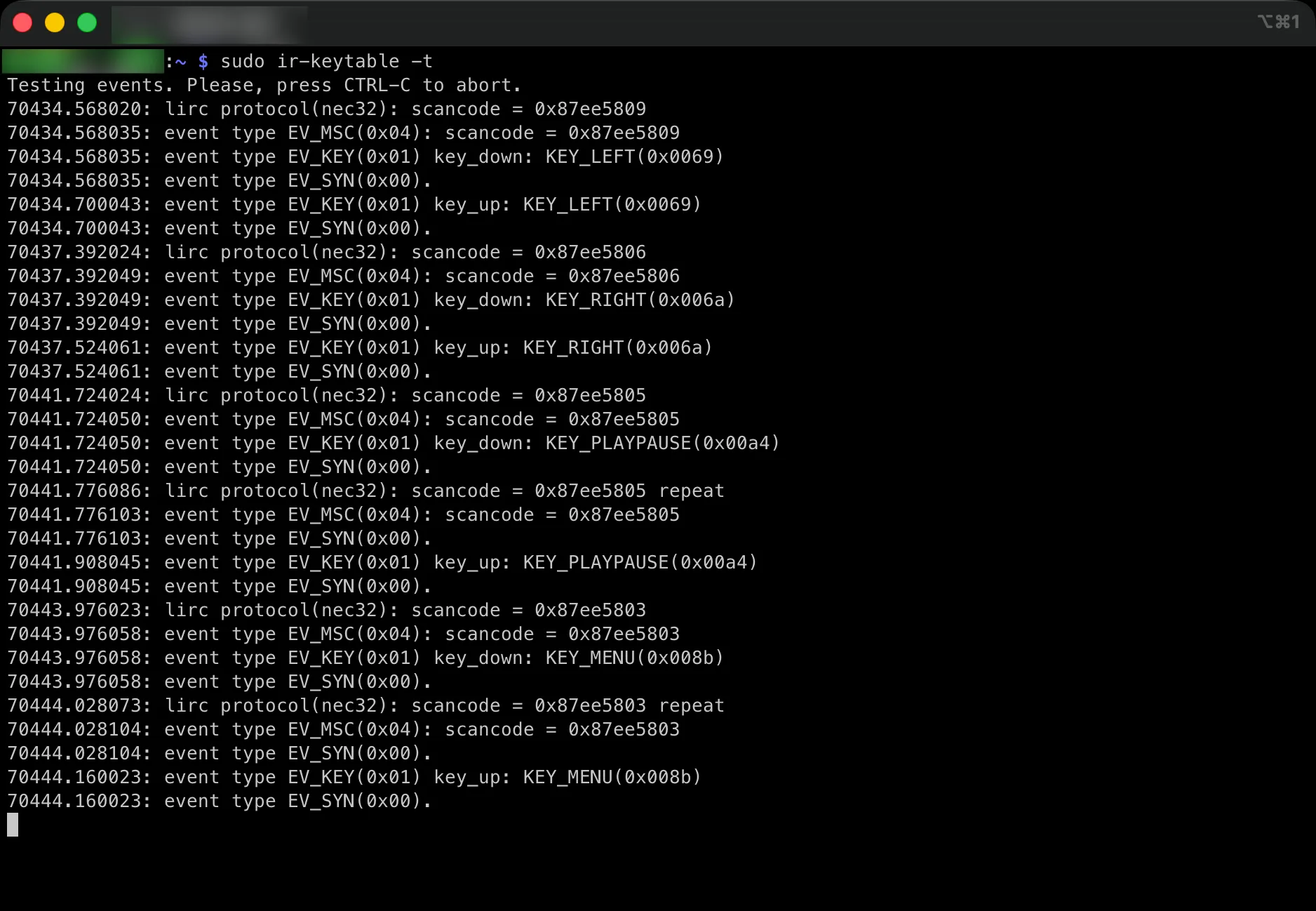
This meant that the wiring was correct and the kernel driver was working as expected.
Creating a custom keymap file for the Apple remote
Rather than relying on whatever default mapping might exist, I created my own explicit mapping so the behavior would be deterministic and easy to reproduce later.
I used the scancodes that ir-keytable and mapped those directly to the key I was pressing on the remote.
I put the mapping file in a place where I could find it again later: /home/pi/ir_data/apple_remote.toml
The idea was simple:
- For each button, take the scancode I saw via ir-keytable -t
- Map it to a Linux keycode like KEY_LEFT, KEY_RIGHT, KEY_MENU, KEY_PLAYPAUSE
[[protocols]]
name = "apple_remote"
protocol = "nec"

[protocols.scancodes]
0x87ee5803 = "KEY_MENU"
0x87ee5805 = "KEY_PLAYPAUSE"
0x87ee580a = "KEY_UP"
0x87ee580c = "KEY_DOWN"
0x87ee5809 = "KEY_LEFT"
0x87ee5806 = "KEY_RIGHT"
That file became the source of truth for how the remote should behave.
Loading the keymap with ir-keytable
Once the mapping file existed, I loaded it with:
sudo ir-keytable -w /home/pi/ir_data/apple_remote.toml
At that point, pressing buttons would generate clean key events that show up through the normal Linux input pipeline.
Verifying the mapping worked
To verify, I went back to the live event mode:
sudo ir-keytable -t
Now, when I pressed buttons, I could see the scancode and also confirm that the mapped keycodes were what I expected (Left produced KEY_LEFT, Menu produced KEY_MENU, etc.). You can see that in the screenshot above.
This step was crucial because it meant my Python script could stay very simple. It didn’t need to know anything about IR protocols or scancodes. It just listens for normal key events.
Why I liked this approach
This approach ended up being the cleanest architecture for the project:
- The kernel handles decoding IR signals
- ir-keytable handles mapping scancodes to keycodes
- My Python script only handles “when I see KEY_MENU, toggle captions”
That separation made the whole setup easier to debug and much less fragile.
Testing with Python
To validate that I could see exactly what keycodes were being emitted, I wrote a small monitoring script. This allowed me to listen directly to the input device and print key events as they arrived.
The monitoring script is as follows:
#!/usr/bin/env python3
"""
ir_monitor.py
Watches Linux input events from the Raspberry Pi IR receiver (gpio_ir_recv),
then prints debounced key presses.
Why this exists:
- ir-keytable maps scancodes to KEY_* names for us.
- The Apple Remote can emit repeats (when holding a button)
  and sometimes sends rapid duplicates even on short taps.
- We will debounce so later, when we trigger actions, we do not double-fire.
How to use:
  sudo python3 /home/pi/ir_data/ir_monitor.py
Press remote buttons and watch the output.
"""
import time
from evdev import InputDevice, categorize, ecodes, list_devices
# We prefer a stable path, but event numbers can change across boots.
# So we auto-discover the device by name.
TARGET_NAME = "gpio_ir_recv"
# Debounce window in seconds.
# If the same key is pressed again within this window, ignore it.
DEBOUNCE_SECONDS = 0.20

def find_ir_device() -> InputDevice:
  """
  Find the /dev/input/eventX device that corresponds to gpio_ir_recv.
  Raises RuntimeError if not found.
  """
  for path in list_devices():
    dev = InputDevice(path)
    if dev.name == TARGET_NAME:
      return dev
  raise RuntimeError(f"Could not find input device named '{TARGET_NAME}'")

def main() -> None:
  dev = find_ir_device()
  # Track last time we accepted a key press, per key code.
  last_accepted_ts: dict[int, float] = {}
  print(f"Listening on {dev.path} ({dev.name})")
  print("Press CTRL-C to stop.\n")
  for event in dev.read_loop():
    # We only care about key events.
    if event.type != ecodes.EV_KEY:
      continue
    key_event = categorize(event)
    # key_event.keystate:
    #   0 = key up
    #   1 = key down
    #   2 = key hold / repeat
    #
    # For triggering actions, we typically only want the initial "down".
    if key_event.keystate != key_event.key_down:
      continue
    key_code = key_event.scancode
    key_name = key_event.keycode
    now = time.monotonic()
    last = last_accepted_ts.get(key_code, 0.0)
    # Debounce: ignore rapid duplicates.
    if (now - last) < DEBOUNCE_SECONDS:
      continue
    last_accepted_ts[key_code] = now
    print(f"ACCEPTED: {key_name}  (code={key_code})")

if __name__ == "__main__":
  main()
Pressing buttons on the remote produced clean, readable output:
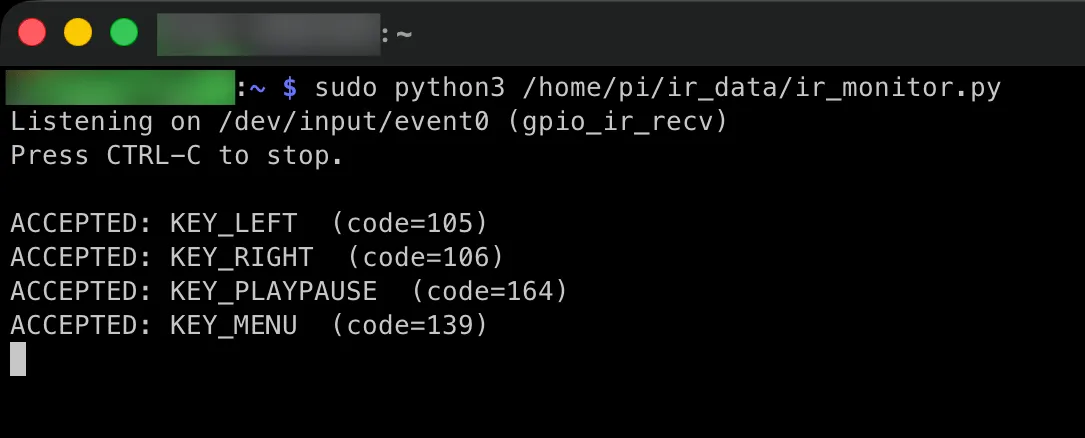
This was ideal. Instead of cryptic hex codes, Linux was already doing the heavy lifting and mapping the IR protocol to meaningful key names.
Mapping remote buttons to actions
With the available buttons identified, the next step was deciding what each one should do.
I settled on the following mapping:
- Left → Previous photo
- Right → Next photo
- Menu → Toggle photo captions on and off
- Play / Pause → Pause or resume the slideshow
The Play / Pause button turned out to be a perfect fit for a photo frame. Being able to freeze the slideshow on a particular image feels natural, and it rounds out the interaction nicely without adding complexity.
Astute readers will have noticed that I do not map anything to the Up or Down remote buttons. I did consider mapping those to turning the display On/Off but in the end I deferred that work as I wasn’t sure I would ever use it.
How IR Keypresses Trigger Actions on the Photo Frame
At this point, we have an Apple TV remote sending infrared signals, a Raspberry Pi receiving those signals, and a Python script translating them into meaningful button presses. The remaining piece is understanding how those button presses actually cause something to happen on the photo frame itself.
The key idea is that the IR remote does not talk directly to PicFrame. Instead, it publishes high-level intent events over MQTT, and PicFrame subscribes to those events and reacts accordingly. This loose coupling turned out to be one of the cleanest design decisions in the whole project.
Why MQTT?
I was already using MQTT elsewhere in this project to integrate the photo frame with Home Assistant, so it made sense to reuse it here. MQTT gives a few important benefits:
- The IR handling code stays completely independent from PicFrame internals.
- Debugging is much easier because messages can be inspected with standard MQTT tools.
- Future inputs, such as buttons, sensors, or Home Assistant automations, can reuse the same control path.
In short, the IR remote becomes just another input device that emits events, rather than something tightly wired into the slideshow code.
The Event Flow at a High Level
Here is the whole chain from button press to on-screen behavior:
- You press a button on the Apple TV remote.
- The IR receiver exposes the event as a Linux input event.
- ir_actions.py listens to those events using evdev.
- The script maps each key to a semantic action.
- That action is published to an MQTT topic.
- PicFrame is subscribed to that topic.
- PicFrame updates its state accordingly.
Each step is intentionally simple, which made the system much easier to debug when something didn’t work.
Translating Key Presses into Actions
Inside ir_actions.py, key presses like KEY_LEFT, KEY_RIGHT, KEY_MENU, and KEY_PLAYPAUSE are detected and mapped to specific actions.
Instead of hard-coding slideshow behavior, the script publishes messages like:
- next
- previous
- toggle_caption
- play_pause
These are published to a dedicated MQTT topic used by the photo frame. For example, pressing the right button on the remote control triggers a KEY_RIGHT event, which triggers the “homeassistant/button/PhotoFrame1_next/set” MQTT topic.
The payload is intentionally small and human-readable. This makes it easy to test manually using tools like mosquitto_pub.
How PicFrame Responds
On the PicFrame side, a small MQTT listener subscribes to the same topic. When a message arrives, PicFrame translates it into an internal action:
- next advances to the next photo.
- previous goes back.
- toggle_caption shows or hides photo metadata.
- play_pause pauses or resumes the slideshow.
This is the same mechanism used by other control paths, including Home Assistant automations. From PicFrame’s point of view, it does not matter whether the command came from an IR remote, a dashboard button, or a scheduled automation.
Why This Design Scales Well
One unexpected benefit of this approach is how extensible it is.
If I decide to add:
- A physical button connected to GPIO
- A motion sensor trigger
- A phone or web interface
- A Home Assistant dashboard control (I’ve already done this)
All of those inputs can simply publish the same MQTT messages. PicFrame does not need to change at all.
Similarly, the IR script can be extended to support additional buttons or entirely different remotes without touching the slideshow logic.
Debugging and Observability
Because everything flows through MQTT, troubleshooting is straightforward:
- If a button press is not detected, I can see whether ir_actions.py logs it.
- If PicFrame does not react, I can subscribe to the MQTT topic and verify whether messages are being published.
- If needed, I can manually publish test messages to simulate remote presses.
This separation of concerns saved a lot of time while tuning key mappings and fixing edge cases.
Pulling It All Together
At the end of this setup, the Apple TV remote feels like a native control surface for the photo frame:
- Left and right buttons move through photos.
- Menu toggles captions on and off.
- Play/Pause pauses and resumes the slideshow.
Under the hood, though, everything is cleanly decoupled and message-driven. The IR remote is just another event source, and MQTT is the glue that ties the whole system together.
This ended up being one of those designs that feels slightly over-engineered at first, but pays off immediately in flexibility and reliability.
Writing ir_actions.py
The core of the IR integration lives in a script called ir_actions.py.
This script does a few key things:
- Locates the IR input device
- Listens for key events
- Filters out repeated or noisy events
- Maps accepted keys to actions
- Triggers the corresponding PicFrame behavior
One issue I ran into early was key repeat behavior. Some buttons, especially Menu and Play / Pause, can emit multiple events if held down even briefly. I had to make sure the script reacted only to clean press events, not to repeats.
Once that was handled, the logic became very simple and reliable.
#!/usr/bin/env python3
"""
ir_actions.py

Listens for Apple Remote key events and triggers actions.

Design goals:
- Use the kernel key mapping you set up with ir-keytable.
- Trigger only on key_down events (ignore key_up and key_hold/repeat).
- Debounce per-key to avoid double-fires.
- Keep actions in one place so you can tweak behavior easily.

Run:
  sudo /home/pi/ir_data/ir_actions.py
"""

import subprocess
import time
from evdev import InputDevice, categorize, ecodes, list_devices

TARGET_NAME = "gpio_ir_recv"
DEBOUNCE_SECONDS = 0.20

MQTT_HOST = "127.0.0.1"
MQTT_PORT = 1884

paused_state = False
overlay_state = True

OVERLAY_TOPICS = [
  "homeassistant/switch/PhotoFrame1_date_toggle/set",
  "homeassistant/switch/PhotoFrame1_location_toggle/set",
]

def find_ir_device() -> InputDevice:
  for path in list_devices():
    dev = InputDevice(path)
    if dev.name == TARGET_NAME:
      return dev
  raise RuntimeError(f"Could not find input device named '{TARGET_NAME}'")

def run_cmd(cmd: list[str]) -> None:
  """
  Run a command without throwing the whole script if it fails.
  """
  try:
    subprocess.run(cmd, check=False)
  except Exception as e:
    print(f"ERROR running {cmd}: {e}")

def mqtt_pub(topic: str, payload: str) -> None:
  """
  Publish a single MQTT message using mosquitto_pub.
  We use the localhost-only anonymous listener on 127.0.0.1:1884 so
  we do not need credentials.
  """
  run_cmd([
    "mosquitto_pub",
    "-h", MQTT_HOST,
    "-p", str(MQTT_PORT),
    "-t", topic,
    "-m", payload
  ])

def handle_key(key_name: str) -> None:
  """
  Map keys to actions.
  """
  run_cmd(["logger", "-t", "ir_actions", f"Pressed {key_name}"])

  if key_name == "KEY_LEFT":
    # Previous Photo
    mqtt_pub("homeassistant/button/PhotoFrame1_back/set", "ON")
  elif key_name == "KEY_RIGHT":
    # Next photo (PicFrame HA-style MQTT button)
    mqtt_pub("homeassistant/button/PhotoFrame1_next/set", "ON")
  elif key_name == "KEY_PLAYPAUSE":
    # Toggle Playing or Paused
    global paused_state
    paused_state = not paused_state
    mqtt_pub(
      "homeassistant/switch/PhotoFrame1_paused/set",
      "ON" if paused_state else "OFF"
    )
  elif key_name == "KEY_MENU":
    # Toggle Caption/Overlay
    global overlay_state
    overlay_state = not overlay_state
    payload = "ON" if overlay_state else "OFF"

    for topic in OVERLAY_TOPICS:
      mqtt_pub(topic, payload)
  elif key_name == "KEY_UP":
    # TODO: brightness up (optional)
    pass
  elif key_name == "KEY_DOWN":
    # TODO: brightness down (optional)
    pass

def main() -> None:
  dev = find_ir_device()
  last_accepted_ts: dict[str, float] = {}

  print(f"Listening on {dev.path} ({dev.name})")
  print("Press CTRL-C to stop.\n")

  for event in dev.read_loop():
    if event.type != ecodes.EV_KEY:
      continue

    key_event = categorize(event)

    # Only accept "key down" (not key up, not hold/repeat).
    if key_event.keystate != key_event.key_down:
      continue

    key_name = key_event.keycode
    now = time.monotonic()
    last = last_accepted_ts.get(key_name, 0.0)

    if (now - last) < DEBOUNCE_SECONDS:
      continue

    last_accepted_ts[key_name] = now
    print(f"ACCEPTED: {key_name}")
    handle_key(key_name)

if __name__ == "__main__":
  main()
Testing manually
Before turning this into a service, I ran the script manually:
/home/pi/venv_picframe/bin/python3 /home/pi/ir_data/ir_actions.py
Pressing buttons produced output to the console similar to the monitoring script
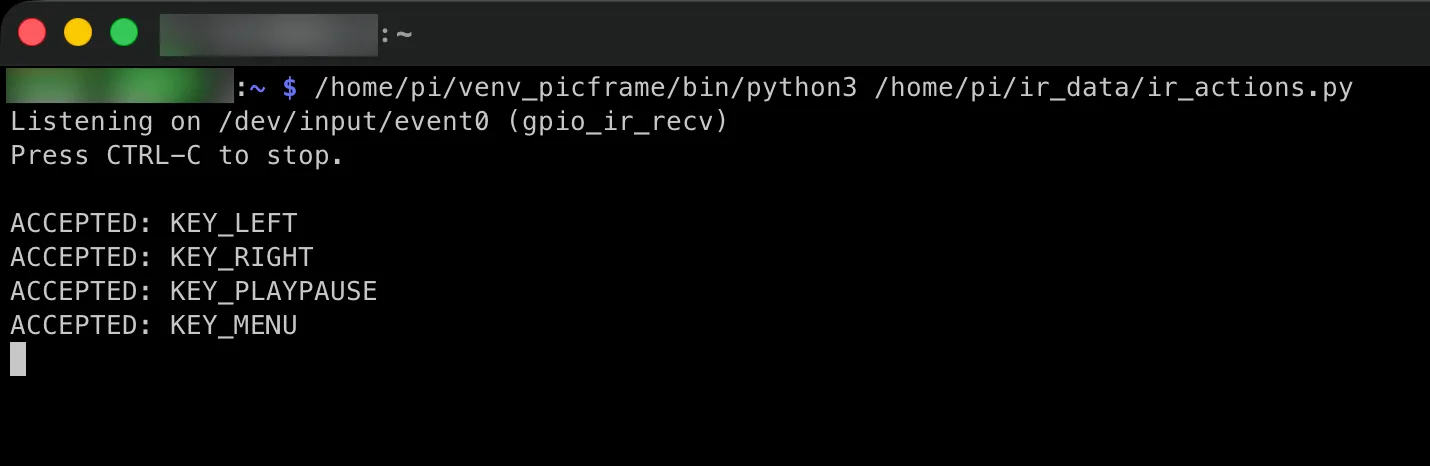
More importantly, the photo frame behaved exactly as expected:
- Photos advanced left and right
- Captions toggled on and off
- The slideshow paused and resumed cleanly
At this point, everything was working interactively.
Turning the IR script into a systemd service
Once ir_actions.py was working when run manually, the next step was to make it start automatically on boot and run in the background. On Raspbian, the cleanest way to do that is with a systemd service.
I will say that this section might feel a little too much for some folks. It is mainly here for completeness and for me to document various admin commands in case I need them later. If you already understand how systemd works, then you can probably skim or even skip this section.
Where the script lives
I kept all IR-related files together so paths were predictable and easy to reference from systemd:
- IR script:/home/pi/ir_data/ir_actions.py
- Key mapping file:/home/pi/ir_data/apple_remote.toml
- Python virtual environment used by PicFrame:/home/pi/venv_picframe/bin/python3
This matters because the systemd service calls Python, and the script uses absolute paths. If any of these move, the service will fail.
Creating the systemd service file
The service definition lives at /etc/systemd/system/ir_actions.service
This is the final version that survived reboots and has been working reliably:
[Unit]
Description=IR remote actions for PicFrame
After=picframe.service
Wants=picframe.service
[Service]
Type=simple
User=pi
Group=pi
WorkingDirectory=/home/pi
ExecStartPre=/bin/sleep 2
ExecStart=/home/pi/venv_picframe/bin/python3 /home/pi/ir_data/ir_actions.py
Restart=on-failure
RestartSec=2
StandardOutput=journal
StandardError=journal
[Install]
WantedBy=multi-user.target
A few details are worth calling out:
- Running as pi ensures the script has access to the virtual environment and IR files without permission hacks.
- The After= and Wants= lines make sure PicFrame is already running. The IR script doesn’t strictly depend on PicFrame being up, but the actions it triggers do.
- The small ExecStartPre sleep avoids race conditions at boot where /dev/input/event* devices are not fully ready yet.
- Restart-on-failure makes the system self-healing if the script ever crashes.
In case it’s helpful to you and also to document it for myself, I’ve included below the various admin commands I use to manage the service.
Registering the service with systemd
Any time a new unit file is created or edited, systemd needs to reload its configuration:
sudo systemctl daemon-reload
Starting the service
To start the IR listener immediately:
sudo systemctl start ir_actions.service
To enable it so it starts automatically on every reboot:
sudo systemctl enable ir_actions.service
If you prefer to do both at once:
sudo systemctl enable --now ir_actions.service
Verifying the service is running
To check overall status:
systemctl status ir_actions.service --no-pager
To confirm it is enabled at boot:
systemctl is-enabled ir_actions.service
To confirm the Python process is actually running:
sudo pgrep -a -f 'ir_actions\.py' || true
Checking logs
Because the service sends both stdout and stderr to the system journal, debugging is straightforward.
To see recent logs:
journalctl -u ir_actions.service --since "10 minutes ago" --no-pager
To follow logs live while pressing buttons on the remote:
journalctl -u ir_actions.service -f
This was especially useful for verifying that KEY_MENU and KEY_PLAYPAUSE were being detected after a reboot without having to SSH in repeatedly.
Restarting or stopping the service
After making changes to ir_actions.py, restarting the service is enough:
sudo systemctl restart ir_actions.service
To stop it:
sudo systemctl stop ir_actions.service
To disable the service from starting on boot:
sudo systemctl disable ir_actions.service
One issue we hit: missing Python dependencies
The first time I ran the script manually, it failed with:
ModuleNotFoundError: No module named 'evdev'
This happened because ir_actions.py relies on the evdev module and the script is run inside the PicFrame virtual environment.
The fix was simply to install evdev into that virtual environment:
sudo -u pi /home/pi/venv_picframe/bin/pip install evdev
After that, both manual runs and the systemd service worked as expected.
Verifying everything after reboot
After rebooting the system, I confirmed that:
- PicFrame started correctly
- The IR service was running
- Button presses were logged via journalctl
- All remote actions worked without manual intervention
At this point, the photo frame finally felt complete. I could control it entirely from the Apple remote, without touching the Pi itself.
Final result
With the IR remote in place, the photo frame now supports:
- Previous / Next photo
- Toggle Captions On/Off
- Toggle Play / Pause slideshow
All of this works:
- Hands-free
- From across the room
- Reliably after reboot
The Apple IR remote turned out to be an almost perfect control device for this project, and using Linux’s built-in input handling kept the implementation far simpler than I originally expected.
What’s Next
Of course, I’m not done yet. Here are the things that I’d like to continue working on:
- Make it smarter about photo selection: for example, showing birthday or anniversary photos on the right day, or surfacing pictures taken “on this day” years ago. This will require a cleanup of my photo library to ensure that photos have the right metadata to show up when they should. That will take a lot more time.
- Remove the monitor from its case and build a custom photo frame for it so it doesn’t look quite like a monitor. Having the photo frame on monitor in my office is fine. Having a photo frame that looks like a monitor in the living room would be weird. It also will give it a very low wife acceptance factor.
Was this article helpful?
Thank you for your support and motivation.